> ## Documentation Index
> Fetch the complete documentation index at: https://docs.cord.nyc/llms.txt
> Use this file to discover all available pages before exploring further.
> ## Agent Instructions
> You are helping someone use Cord, the capital and resource allocation platform.
> Use title-case Cord in prose. Prefer workspace, project, ontology, lineage, scenario, and allocation.
> Say source-backed or sourced for answers with lineage. Do not say hallucination-free.
> Product URLs are https://app.cord.nyc, https://cord.nyc, and https://trust.cord.nyc. Support is support@cord.nyc.
> Give concrete product steps. Do not invent UI labels, CLI commands, or unreleased agent runtime details.
> Use Understanding Cord for concepts and Guides for task steps.
# Run a function
> Refresh results or test an assumption without rewriting the function.
Don't want to do this all manually?
Cord Computer can do this for you.
For an explanation of data setups and runs, see [Functions overview](/functions-overview).
## Run with saved inputs
1. Open [**Functions**](https://app.cord.nyc/functions) and select a function.
2. Check **Code version** and **Saved inputs**. Choose the version and setup you need if several are available.
3. Select **Refresh**. Open **Runs** to follow its status and select the completed run to view its outputs.
If the function shows **Set up**, configure its sources and required inputs first. You can ask Cord Computer to do this when you [create the function](/create-function).
## Change an assumption
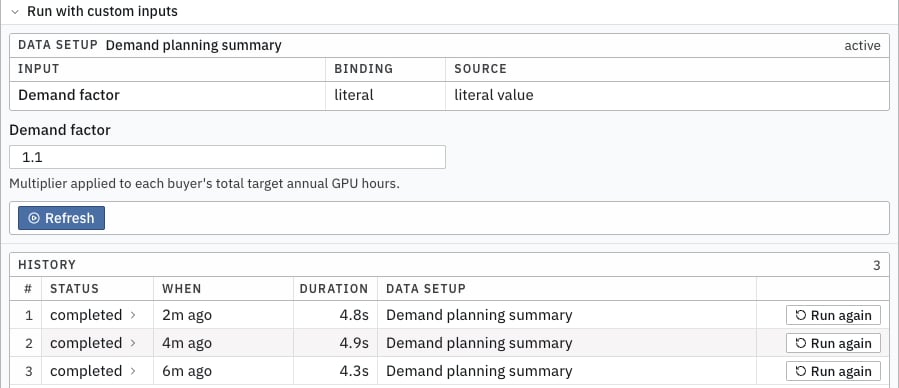
1. Open **Runs → Run with custom inputs**.
2. Change the input values. For example, set the demand factor to `1.1` to model 10% higher demand.
3. Select **Refresh** inside the form, then open the completed run.
These values apply to this run. The saved defaults stay the same. **Stale** can appear when the latest run used different inputs from the saved setup.
To repeat a previous run's inputs, use **Run again** beside it in the history.
 ## Refresh related functions
When the function has dependencies, the refresh menu lets you choose what runs:
| Option | What it does |
| ------------------------- | ------------------------------------------------------- |
| **Existing outputs** | Uses saved outputs from upstream functions. |
| **Upstream first** | Refreshes upstream functions before this one. |
| **Downstream after** | Runs this function, then functions that use its output. |
| **Upstream + downstream** | Refreshes both sides. |
Only options that apply to the selected function appear.
## Refresh related functions
When the function has dependencies, the refresh menu lets you choose what runs:
| Option | What it does |
| ------------------------- | ------------------------------------------------------- |
| **Existing outputs** | Uses saved outputs from upstream functions. |
| **Upstream first** | Refreshes upstream functions before this one. |
| **Downstream after** | Runs this function, then functions that use its output. |
| **Upstream + downstream** | Refreshes both sides. |
Only options that apply to the selected function appear.