> ## Documentation Index
> Fetch the complete documentation index at: https://docs.cord.nyc/llms.txt
> Use this file to discover all available pages before exploring further.
> ## Agent Instructions
> You are helping someone use Cord, the capital and resource allocation platform.
> Use title-case Cord in prose. Prefer workspace, project, ontology, lineage, scenario, and allocation.
> Say source-backed or sourced for answers with lineage. Do not say hallucination-free.
> Product URLs are https://app.cord.nyc, https://cord.nyc, and https://trust.cord.nyc. Support is support@cord.nyc.
> Give concrete product steps. Do not invent UI labels, CLI commands, or unreleased agent runtime details.
> Use Understanding Cord for concepts and Guides for task steps.
# Create a data feed
> Create a feed to bring source data into your project and manage its updates.
Don't want to do this all manually?
Cord Computer can do this for you.
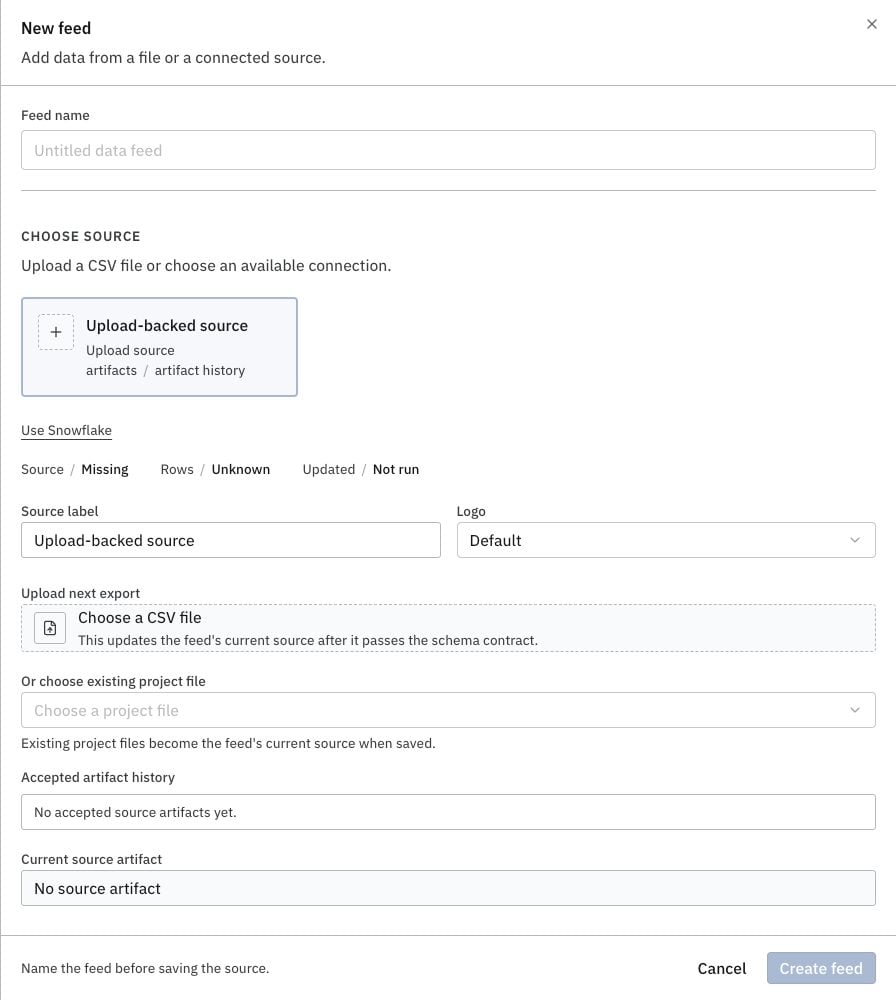
1. Open [**Data Feeds**](https://app.cord.nyc/data-feeds) with your project selected.
2. Select **New feed** and enter a name.
3. Follow the steps for your source below.
## Upload a CSV
Use a CSV file with column headings.
1. Choose **Upload-backed source**, then **Choose a CSV file**.
2. Select your file, then select **Create feed with current source**.
Your file becomes the feed's current source.
 ## Use an existing project file
1. Choose **Upload-backed source**.
2. Select your CSV under **Or choose existing project file**, then select **Create feed**.
You can [upload files](/upload-files) to your project first, or use the direct CSV upload above.
## Use a connection
[Connect your source and add it to the project](/connect-data-source) first. Available sources depend on the connections that support data feeds.
1. Choose your connection and select a **Resource**.
2. Complete the source fields, then select **Create feed and refresh source**.
When the feed shows **Source ready**, you can map its data into your ontology.
## Use an existing project file
1. Choose **Upload-backed source**.
2. Select your CSV under **Or choose existing project file**, then select **Create feed**.
You can [upload files](/upload-files) to your project first, or use the direct CSV upload above.
## Use a connection
[Connect your source and add it to the project](/connect-data-source) first. Available sources depend on the connections that support data feeds.
1. Choose your connection and select a **Resource**.
2. Complete the source fields, then select **Create feed and refresh source**.
When the feed shows **Source ready**, you can map its data into your ontology.